Keil RTX
On this page:
Introduction
winIDEA provides dedicated debugging and profiling support for the Keil RTX4 and RTX5 RTOS. This includes specialized views for kernel objects and basic thread profiling.
With Keil RTX debug support, you can:
•inspect kernel objects such as threads, timers, semaphores, mutexes, and memory pools
•profile running threads - see Profiling
Requirements
•Keil RTX version 4 or 5
•winIDEA 9.21.393 or newer
Configuration
To start using the Kel RTX plugin, follow these steps:
1. Open Debug > Configure Session … > Applications > Edit.
2. Select RTX under OS.
For more information, refer to Profile OS objects or follow the Session Configuration Wizard.
Thread
The Threads window shows information about all threads in the system. To open it go to View > application name > New Keil RTX > Threads.
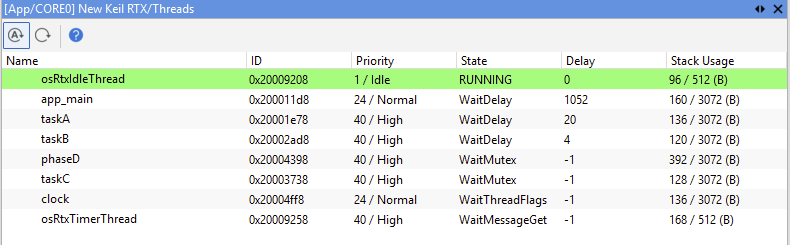
Column explanation
The following table describes each column in the Thread window:
Column name |
Description |
|---|---|
Name |
Name provided in thread attributes at thread creation. If none is provided, the symbol name of the thread entry function is displayed. |
ID |
Thread ID. In RTX5 this is the object address. In RTX4 this is a sequential thread number. |
Priority |
Thread priority (1 = lowest, 56 = highest). |
State |
Current state of a thread.
•RTX5 can be either of: oINACTIVE oREADY oRUNNING oTERMINATED oWait(Delay, Join, ThreadFlags, Event, Mutex, Semaphore, MemoryPool, MessageGet or MessagePut)
•RTX4 can be either of: oINACTIVE oREADY oRUNNING oWAIT_(DLY, ITV, OR, AND, SEM, MBX and MUT) |
Delay |
Amount of ticks left to be suspended in the delay state. |
Stack Usage |
Used stack / total allocated stack (bytes). |
Timers
The Timers window shows information about all timers in the system. To open it go to View > application name > New Keil RTX > Timers.

Column explanation
The following table describes each column in the Timers window:
Column name |
Description |
|---|---|
Callback |
Function to be called once the timer elapses. |
State |
Current timer state.
Timer states: •INACTIVE •STOPPED •RUNNING •INVALID |
Period |
Period of the timer in ticks |
Ticks Left |
Ticks until callback function is called |
Type |
One shot or periodic. |
Memory Pool
The Memory Pool window shows information about all memory pools in the system. To open it go to View > application name New Keil RTX > Memory Pools.
Note: Not supported for Keil RTX4.
Column explanation
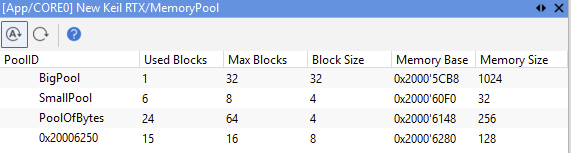
Column explanation
The following table describes each column in the Memory Pool window:
Column name |
Description |
|---|---|
Pool ID |
Pool name attribute, if null, pool structure address is displayed instead |
Used Blocks |
Number of already allocated blocks |
Max Blocks |
Number of all available blocks in a pool |
Block Size |
Size of a block in bytes |
Memory Base |
Starting address of memory pool data |
Memory Size |
Size of memory pool in Bytes (Blocks * Block size) |
Semaphore
The Semaphore window shows semaphore usage info. To open it go to View > application name > New Keil RTX > Semaphore.
Note: Not supported for Keil RTX4.
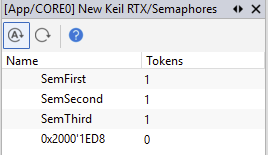
Column explanation
The following table describes each column in the Semphore window:
Column name |
Description |
|---|---|
Name |
Name of the semaphore or pointer to the semaphore structure if name is not provided in the attributes. |
Tokens |
Number of free tokens for given semaphore |
Mutex
The Mutex window shows semaphore usage info. To open it go to View > application name > New Keil RTX > Mutex.
Note: Not supported for Keil RTX4.
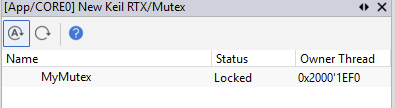
Column explanation
The following table describes each column in the Mutex window:
Column name |
Description |
|---|---|
Name |
Name of the mutex, or address of the mutex if name is not provided |
Status |
can be Locked or Unlocked |
Owner Thread |
thread ID which holds this mutex |
Profiling
Standard thread profiling
For standard thread profiling, no additional configuration is required. winIDEA automatically detects which RTX thread is running and displays this information in the Profiler Timeline.
•If the Process names are available when the Analyzer Session starts, they are shown directly in the Profiler Timeline. To ensure this, start and stop Keil RTX plugin before launching the Analyzer. This is especially needed in RTX5 as threads can be created at runtime.
•Note that infinite thread entry functions are not visible in the Code Profiler window unless Analyzer Configuration > Profiler | Advanced > Allow functions without exits is checked.
Custom RTX5 thread profiling
For more detailed or customized thread-state profiling, RTX5 hooks can be used together with a profiler.xml configuration.
Path to Profiler file can be configured with Debug > Configure Session… > Applications > App > Edit … > Application > OS RTX Configure… > Profiler XML file.
RTX5 features EventRecorder hooks, which allow tracing system events. In order to trace thread switches the following functions have to be implemented:
•EvrRtxThreadCreated
•EvrRtxThreadSwitched
•EvrRtxThreadBlocked
•EvrRtxThreadUnblocked
•EvrRtxThreadPreempted
•EvrRtxThreadSuspended
•EvrRtxThreadResumed
•EvrRtxThreadDestroyed
In these hooks thread ID and a state can be logged log to traceable global variable or trace with desired signal (for example ITM), which is then configured in the profiler.xml file, for example:
void EvrRtxThreadCreated(osThreadId_t thread_id, uint32_t thread_addr, const char *name) {
g_thread_state = (0x01U << 24) | ((uint32_t)thread_id & 0x00FFFFFF);
}
void EvrRtxThreadSwitched(osThreadId_t thread_id) {
g_thread_state = (0x02U << 24) | ((uint32_t)thread_id & 0x00FFFFFF);
}
void EvrRtxThreadBlocked(osThreadId_t thread_id, uint32_t timeout){
g_thread_state = (0x03U << 24) | ((uint32_t)thread_id & 0x00FFFFFF);
}
// ... others follow
And the an example entry in the profiler.xml:
...
<Types>
<TypeEnum>
<Name>StateEnum</Name>
<Enum><Name>INACTIVE</Name><Value>0x00</Value><Properties><TaskState>Terminated</TaskState></Properties></Enum>
<Enum><Name>READY</Name><Value>0x01</Value><Properties><TaskState>Ready</TaskState></Properties></Enum>
<Enum><Name>RUNNING</Name><Value>0x02</Value><Properties><TaskState>Running</TaskState></Properties></Enum>
<Enum><Name>BLOCKED</Name><Value>0x03</Value><Properties><TaskState>Blocked</TaskState></Properties></Enum>
<Enum><Name>TERMINATED</Name><Value>0x04</Value><Properties><TaskState>Terminated</TaskState></Properties></Enum>
<Enum><Name>WAITING_DELAY</Name><Value>0x13</Value><Properties><TaskState>Blocked</TaskState></Properties></Enum>
<Enum><Name>WAITING_JOIN</Name><Value>0x23</Value><Properties><TaskState>Blocked</TaskState></Properties></Enum>
<Enum><Name>WAITING_THREAD_FLAGS</Name><Value>0x33</Value><Properties><TaskState>Blocked</TaskState></Properties></Enum>
<Enum><Name>WAITING_EVENT_FLAGS</Name><Value>0x43</Value><Properties><TaskState>Blocked</TaskState></Properties></Enum>
<Enum><Name>WAITING_MUTEX</Name><Value>0x53</Value><Properties><TaskState>Blocked</TaskState></Properties></Enum>
<Enum><Name>WAITING_SEMAPHORE</Name><Value>0x63</Value><Properties><TaskState>Blocked</TaskState></Properties></Enum>
<Enum><Name>WAITING_MEMORY_POOL</Name><Value>0x73</Value><Properties><TaskState>Blocked</TaskState></Properties></Enum>
<Enum><Name>WAITING_MESSAGE_GET</Name><Value>0x83</Value><Properties><TaskState>Blocked</TaskState></Properties></Enum>
<Enum><Name>WAITING_MESSAGE_PUT</Name><Value>0x93</Value><Properties><TaskState>Blocked</TaskState></Properties></Enum>
</TypeEnum>
<TypeEnum>
<Name>TASK_TYPE</Name>
<Enum><Name>NO_TASK</Name><Value>0</Value></Enum>
<Enum><Name>taskA</Name> <Value>0x0018D0</Value></Enum>
<Enum><Name>taskB</Name> <Value>0x002530</Value></Enum>
<Enum><Name>taskC</Name> <Value>0x003190</Value></Enum>
<Enum><Name>phaseD</Name> <Value>0x003DF0</Value></Enum>
<Enum><Name>app_main</Name> <Value>0x000C30</Value></Enum>
<Enum><Name>osRtxTimerThread</Name> <Value>0x008CB0</Value></Enum>
<Enum><Name>clock</Name> <Value>0x004a50</Value></Enum>
<Enum><Name>osRtxIdleThread</Name> <Value>0x008C60</Value></Enum>
</TypeEnum>
</Types>
<Profiler>
<Object>
<Properties>
<TaskState_MaskID>0x00FFFFFF</TaskState_MaskID>
<TaskState_MaskState>0xFF000000</TaskState_MaskState>
<TaskState_Type>StateEnum</TaskState_Type>
</Properties>
<Name>RUNNINGTASK</Name>
<Definition>RUNNINGTASK</Definition>
<Description>Core 0: Tasks</Description>
<Type>TASK_TYPE</Type>
<Expression>g_thread_state</Expression>
<Level>Task</Level>
<Core>0</Core>
<DefaultValue>NO_TASK</DefaultValue>
</Object>
</Profiler>
...