TriCore CSAs
In this topic:
Introduction
CSA is a separate core window of the TriCore plugin. It displays the contents of Context Save Areas and their number.
To load the plugin select View | [<device.core>] TriCore | CSAs. Information is displayed when a debug connection is established.
Toolbar
Button |
Description |
|---|---|
|
Refresh the view (F8) |
|
Go to winIDEA Help |


Rows information
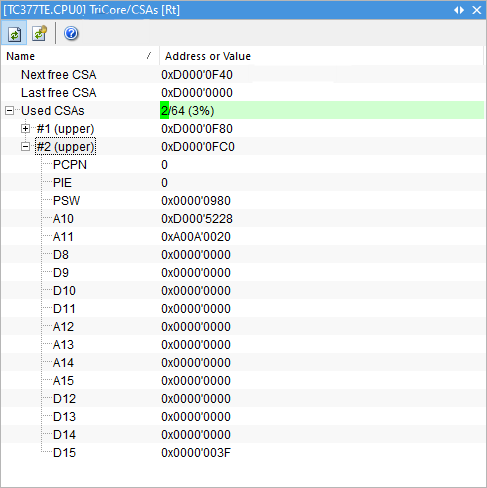
Next free CSA - The address (the segment and offset specified in the register combined appropriately to form the actual address) from the core’s FCX register.
Last free CSA - The address (the segment and offset specified in the register combined appropriately to form the actual address) from the core’s LCX register.
Used CSAs - Shows the percentage of currently used CSAs versus the total number of CSAs (used + free). If there are more CSAs than currently set to display, (approx.) is appended to that value. Items inside Used CSAs represent the currently used CSAs. Each CSA is identified by its index (#1, #2, etc.) and base address.
Lower and upper context - Click the “+” sign on a CSA to expand a different set of registers:
•Lower context - Indicated by (lower)
•Upper context - Indicated by (upper)
Which registers it contains depends on whether it is a lower or upper context. The contents of address registers (A0-A15), if possible, are interpreted as symbols of variables or functions.
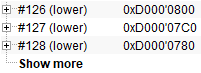
Show more - By default, a maximum of 128 CSAs are recognized (this applies to the total number of CSAs, not the number of used CSAs) to prevent excessive slowdown of winIDEA while stepping through the code. If this limit is reached, a Show more item is shown at the end. Double-clicking it increases the limit by 128, which can be repeated indefinitely. The limit is reset to the default if the window is closed and reopened.
Examples
If the limit is reached the Used CSAs will show (approx.) at the end:

In this example, the limit is 128. Double-clicking Show more increases the limit. The indicators (approx.) and Show more disappear.

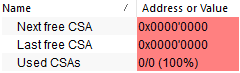
If the FCX and LCX registers have equal values, Next free CSA and Last free CSA are shown in red. This also happens if those registers have not yet been set up.