Please enable JavaScript to view this site.

winIDEA Help

Version: 9.21.404

Setting up winIDEA SWAT for Vector MICROSAR

In this topic:

Introduction

Prerequisites

Step 1: Configure iTCHi Wizard

Step 2: Allocate SWAT buffer

Step 3: Integrate and rebuild code

Step 4: Configure winIDEA


Introduction

This section describes how to integrate SWAT into an application and configure winIDEA Analyzer.


The setup consists of the following main steps:

1.Configure the Vector MICROSAR operating system.

2.Generate the required SWAT configuration and instrumentation files using the iTCHi Wizard.

3.Allocate the SWAT buffer in target memory.

4.Integrate the generated files into the build and rebuild the application.

5.Configure winIDEA Analyzer to display the trace data.


The following sections describe each step in detail.


Prerequisites

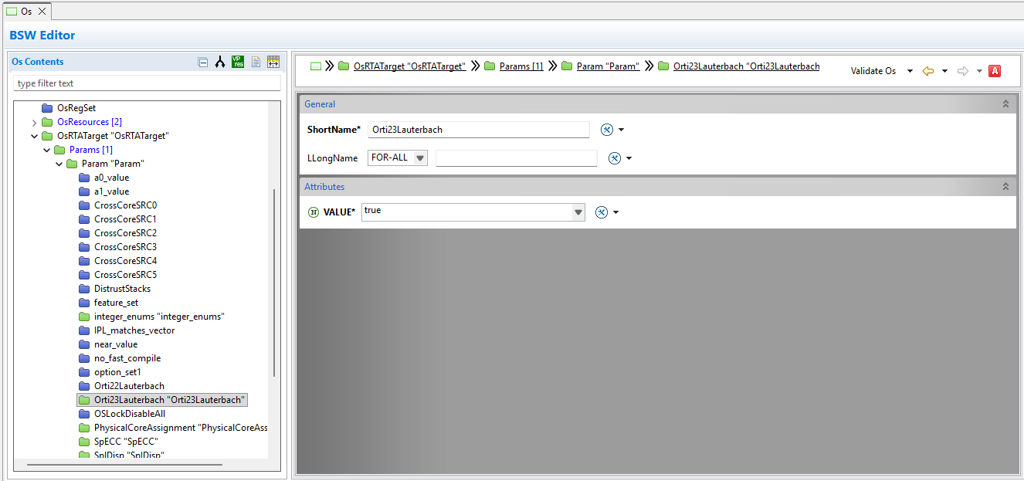
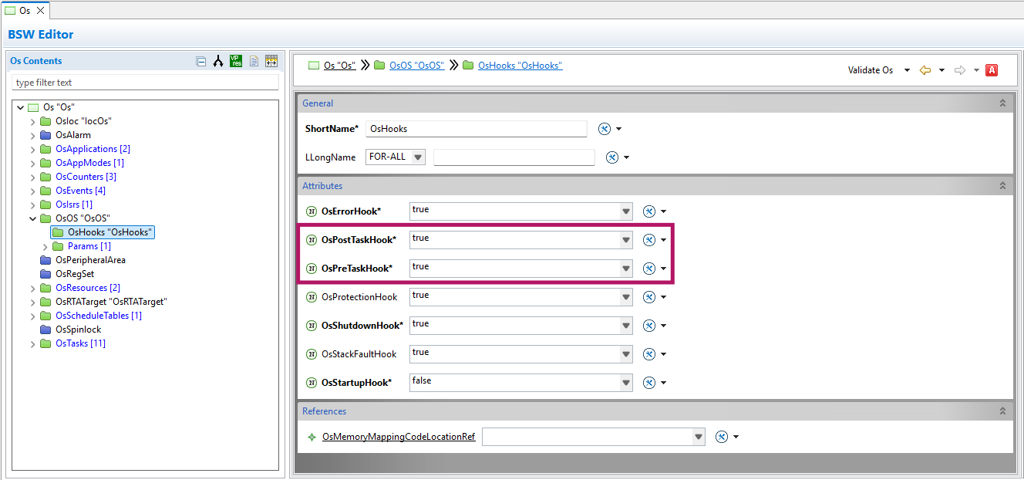
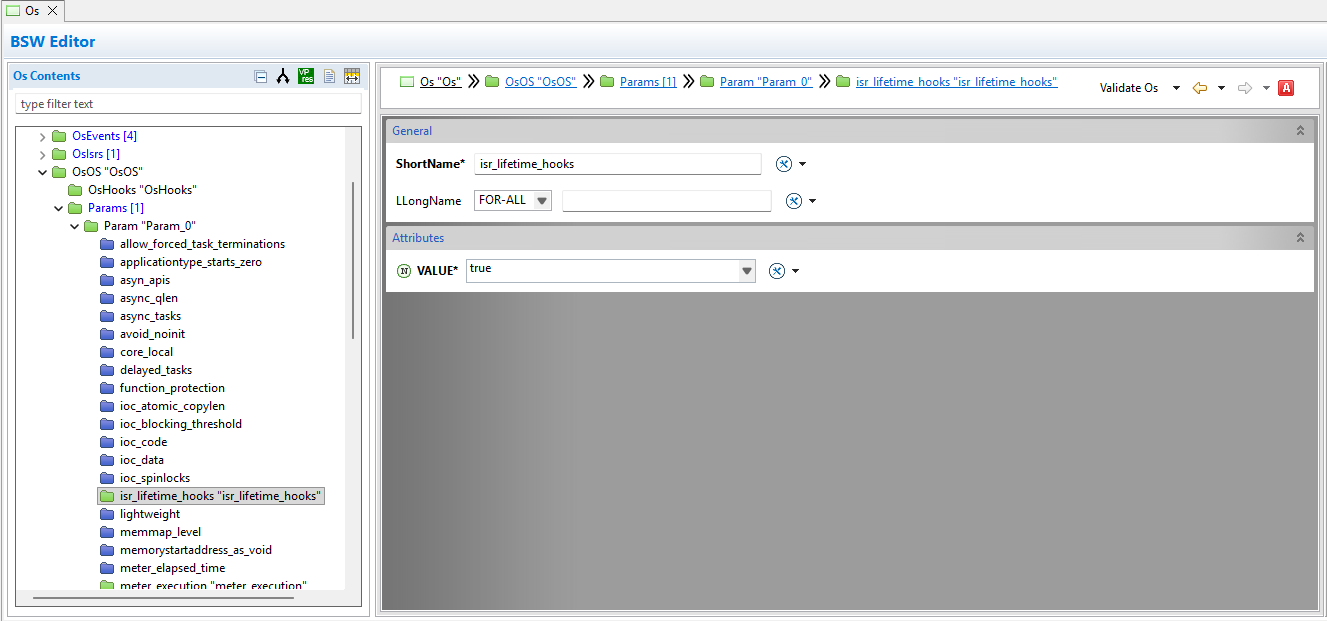
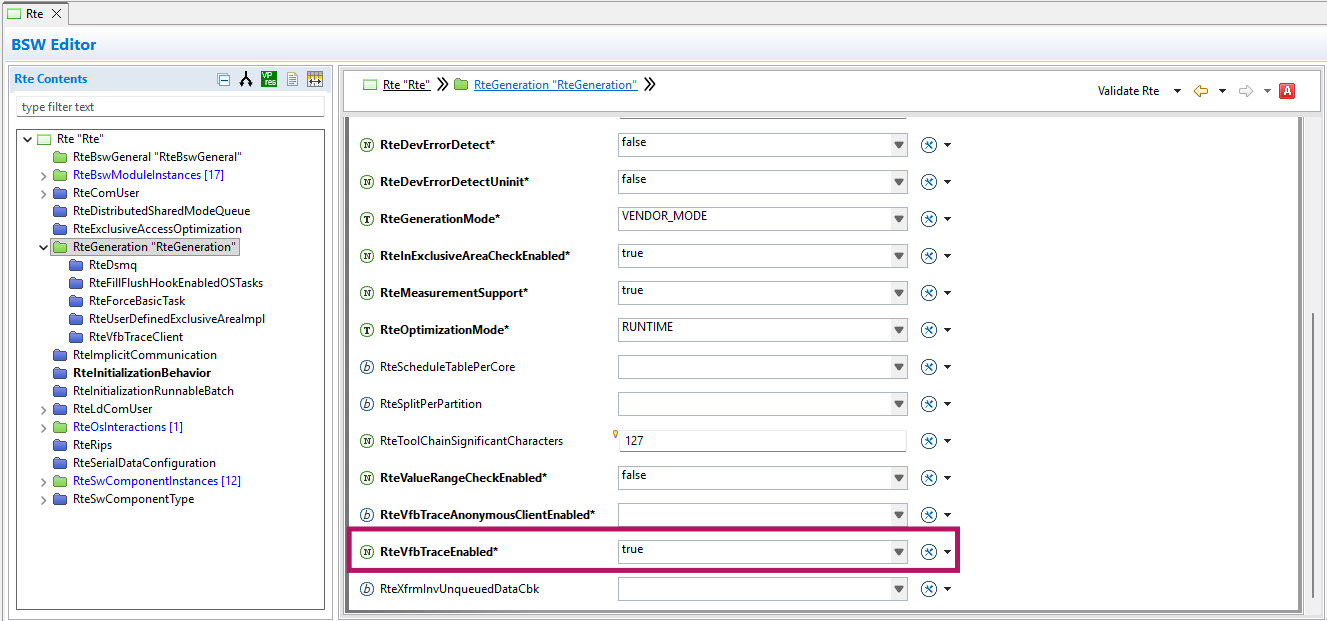
This step depends on the OS and RTE vendor. Depending on your application, follow the sections in Profile Vector MICROSAR how-to guide to record:

Vector MICROSAR Tasks and ISRs - Enable ORTI and OS Timing Hooks in DaVinci Configurator.

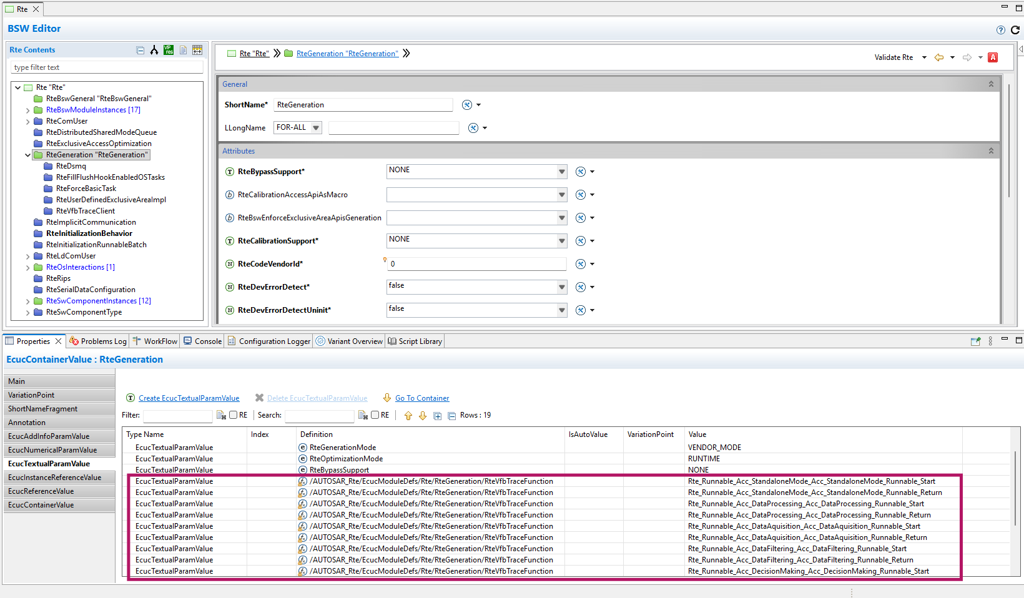
Runnables using the Vector RTE - Enable the VFB Trace Hooks in DaVinci Configurator.


Once you have reached the section where iTCHi is used, return to this how-to guide.


Step 1: Configure iTCHi Wizard

Follow the steps below for iTCHi to generate:

Instrumentation code for Threads, Runnables, and Signals

Configuration file swat_config.h  for the SWAT

Configuration file profiler.xml configuration file for winIDEA to decode data


Follow these steps to obtain them using the Trace Configuration Helper (iTCHi):

1. Open Debug | Configure Session... | Applications | Edit.

2. Select AUTOSAR.

3. Point ORTI file location to your ORTI file.

4. Click iTCHi Wizard... button.

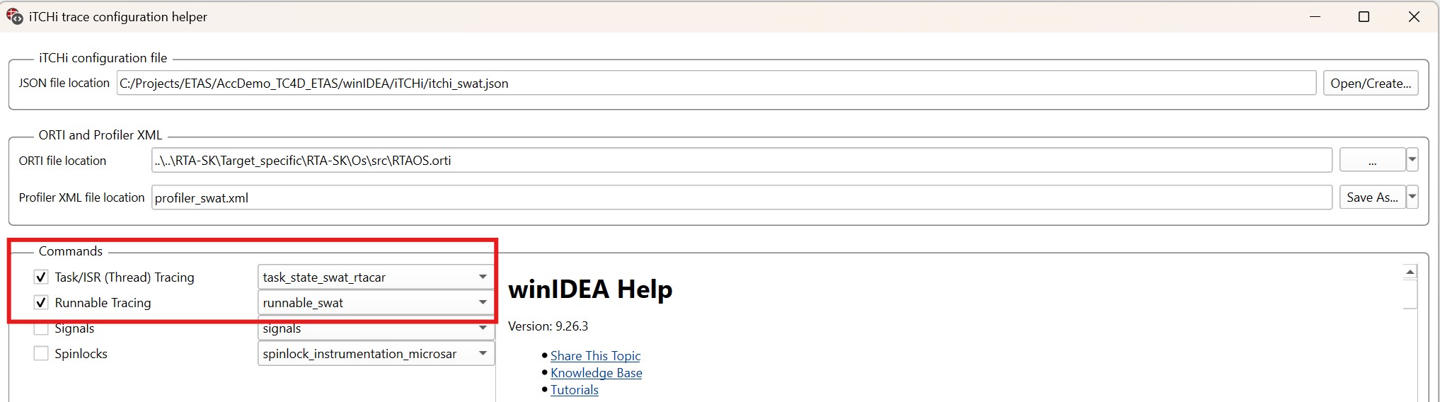
5. Configure parameters:

Vector MICROSAR Tasks and ISRs - Enable Task/ISR (Thread) Tracing and select task_state_swat_microsar.

Runnables using the Vector RTE - Enable Runnable Tracing and select runnable_swat.

Signals (arbitrary data events) - Enable Signals and select signals_swat.


itchi-swat


6. Click Next to continue the configuration.

Depending on the commands you have selected, one or more of the following sections is available:

swat - This section includes SWAT specific configuration options. Keep the default values.

oswat_config_h - Use this attribute to generate the swat_config.h header file directly into the include directory of your application. Do not to change the name of the file, only the directory may be adapted.

otime_address - Configure for synchronized tracing, i.e. tracing of SWAT in combination with other trace sources such as mDIO or hardware trace on a second ECU. It should match the memory mapped counter address used by the SWAT_STORE_TIMESTAMP macro.

The other sections must be updated depending on your OS and RTE vendor.

Refer to Knowledge Base if you encounter sync lost or buffer overflow errors.


task_state_inst_microsar

ovector_os_timing_hooks_h - Confirm that is set to record Vector MICROSAR Tasks and ISRs. This file is generated and implements the Vector OS Timing Hooks so that they call the SWAT observer API. This file must be included in the include directory of your Vector MICROSAR project. You can:

Update this path to directly generate the header file into the directory.

Generate it in a different location and copy it later manually.

ovector_os_timing_hooks_c - This file is not essential for software tracing, and it is not necessary to integrate it into the project.

All other options in this section can be left as they are (The attribute instrumentation_type is implicitly set to swat).


runnable_instrumentation

orte_hook_h - Point to the Rte_Hook.h file (generated by the DaVinci Configurator) to record Runnables using the Vector RTE.

oimpl_vfb_hooks_c - Specify the directory and name of the C file that implements the RTE Runnable hooks. This file must be included and built by the project. You can:

Generate this file directly into the source directory of your Vector MICROSAR project.

Generate it in a different location and copy it later manually.

All other options in this section can be left as they are.


signals_swat

osignals - Add the name of the signals (arbitrary data events) and their type in order to record them. The name is used to display the signal in the timeline. The support types are currently u8 and u32.


In contrast to Threads and Runnables, iTCHi cannot automatically generate the observer points for these custom signals. Refer to swat_config.h to see how you can manually add the observer calls to the code.

For example, for the signal g_dwCounter, you would add the following snippets to the locations in your code where you want to log its value:

// To profile signal 'g_dwCounter' add the following snippet to your code:

SWAT_observe_u32(g_dwCounter, SWAT_OBSERVER_TYPE_ID_G_DWCOUNTER);


7. Select Generate.

This generates the required files after adapting all required attributes. For example, for Vector MICROSAR Thread and Runnable tracing, it will generate the following files:

Os_TimingHooks_winidea.h - Header file that implements the Vector Timing Hooks.

swat_config.h - File that contains the encoding masks for your project.

rte_vfb_impl.c - Source file that implements the Runnable instrumentation.

profiler.xml - Configuration file used by winIDEA to decode the data.


Here is an example output of a successful iTCHi SWAT run:

-------------------- RUNNING ITCHI --------------------

INFO     | Logging to 'itchi.log'.

INFO     | Load 'C:\TASKING\itchi.json'.

INFO     | Working directory is 'C:\TASKING\'.

INFO     | Load 'examples\swat_microsar_orti\Os_Trace.ORT'.

INFO     | Running SWAT.

INFO     | Create SWAT default configuration.

INFO     | Create SWAT configuration for Vector MICROSAR Thread tracing.

INFO     | Render template 'Os_TimingHooks_swat.h' into 'Os_TimingHooks_winidea.h'.

INFO     | Create SWAT configuration for Vector MICROSAR Runnable tracing.

INFO     | VFB trace hooks derived from 'examples\swat_microsar_orti\Rte_Hook.h'.

INFO     | Render 'templates\Rte_Hook_isystem.template.c' into 'rte_vfb_impl.c'.

INFO     | Create SWAT configuration for signals.

INFO     | Render template 'swat_config.h' into 'swat_config.h'.

INFO     | Write 'profiler.xml'.

INFO     | Finished successfully.

-------------------- FINISHED 09:30:02 --------------------


Step 2: Allocate SWAT buffer

SWAT uses a single global structure called SWAT_ring to maintain its internal state and to reference the buffer that stores the trace messages. Special care has to be taken:

1.That the structure is allocated in memory that is read- and writable by the application and the debugger.

2.That the structure is allocated in uncached memory.

3.That an active MPU is configured in a way that permits access to the structure from all relevant contexts.


The correct memory for SWAT_ring depends on the SoC architecture, and the correct way to allocate it to that memory depends on the build system in use. For Infineon AURIX SoCs, the structure should be allocated to global uncached LMU RAM (usually the 0xb00x’xxxx memory range).


The correct approach is highly specific to the build environment used by the project. Pick one of the following approaches or use the features of a project-specific build environment to allocate the SWAT structure into globally accessible RAM:


In case of an MPU, all contexts that generate software trace messages by calling the SWAT observer API must have access to the SWAT structure.

For observing Task and ISR events using OS hooks - Access from the OS context must be enabled.

For Runnables - Access from the enabled VFB trace hooks must be enabled.


Step 3: Integrate and rebuild code

To integrate software tracing into your project, you have to add the generated files, as well as the files from the target-code directory to your software build.

In general, C source files should be added to one of the source directories of the project, and header files to one of the include directories. Depending on the build environment, C files might have to be explicitly added to the build. For example, when using Vector MICROSAR Makefiles, the following code could be used to add the C files to the build:

APP_SOURCE_LST += Source\swat_buffer.c

APP_SOURCE_LST += Source\swat_observer.c

APP_SOURCE_LST += Source\rte_vfb_impl.c


Ensure the appropriate swat_buffer_arch.h file is included for your target architecture:

Set the SWAT_ARCH and SWAT_OS variables when using CMake to select the target architecture and operating system.

Use the -I flag to specify the architecture-specific directory (e.g., -I./arch/tricore for TriCore targets)


Warning_orange

Failure to include the correct header will result in compilation errors or runtime failures.


i-icon

Software Tracing relies on architecture specific features for certain functions. Architecture specific code is defined in swat_buffer_arch.h. Take a moment to review the implementation of the macros SWAT_STORE_TIMESTAMP and SWAT_STORE_CORE_ID. In most cases, these macros should work as provided. However, in some scenarios it might be necessary to manually adapt these macros:

SWAT_STORE_TIMESTAMP is used for adding timestamps to the trace messages. Make sure that the used counter register is enabled by your application and not utilized in a different way. If necessary, adapt the counter address accordingly.

SWAT_STORE_CORE_ID is used for adding the core ID to Runnable and signal messages. In some cases, physical core IDs and logical core IDs (used by the OS) might not match. In such cases, you might have to update this macro to account for such scenarios.


1. Add the following files to your software build:

Generated files:

oswat_config.h

orte_vfb_impl.c (if Runnable tracing is enabled)

oOs_TimingHooks_winidea.h (if Vector MICROSAR Thread tracing is enabled)

Static files from the target-code directory:

oswat_buffer.c

oswat_buffer.h

oswat_observer.c

oswat_observer.h

architecture and OS specific files. For example, for Vector MICROSAR running on an Infineon TriCore microcontroller add these files:

oarch/tricore/swat_buffer_arch.h

oos/microsar/swat_observer_microsar.h


The source files are now referenced by the build system, and the trace variable has been properly allocated.


2. Rebuild the application.


3. Confirm that everything has worked:

a.Download and run the application.

b.Open SWAT_ring in the Watch window.

c.Confirm that data is being added to the buffer.

d.Confirm that SWAT_ring.header has been initialized.


After you run the application for a few milliseconds, data should be added to the buffer and the index variables should change.


swat-watch-window


Step 4: Configure winIDEA

1. Configure AUTOSAR.

To configure winIDEA with the generated profiler.xml file, select the following options:

RTOS description file type - winIDEA OS Info XML.

RTOS description file location - Location of the profiler.xml file.


2. Go to Hardware | CPU Options | Analyzer.

a. Configure:

For Arm-based SoCs:

i.Set Operation mode to SoC.

ii.Go to Hardware | CPU Options | SoC and set Trace Capture method to None.

For all other architectures set Operation mode to None.

b. Set the correct Cycle duration.


For Infineon AURIX, refer to Clocks to configure the Cycle duration. Use the value 1/STM to set the Cycle duration.


Warning_orange

Without a correctly configured Cycle duration, timestamp values reported by the Analyzer will be incorrect.


3. Perform a Download or Load Symbols to apply the changes.

After configuring profiler.xml, you can now use the winIDEA Analyzer to record and profile the instrumentation data.


4. Select the OS objects:

SWAT_Config

Threads

Runnables

Custom signals (if applicable)


5. Start a new trace recording.

You can trace from Reset by starting the recording first and then the Target, or you can also start recording when the application is already running.


If everything is set up correctly:

The status field should display   SAMPLING   with an increasing number indicating how much data has been recorded.

After a few seconds, the Profiler Timeline should start to populate with Thread and Runnable data.


swat-recording-analzyer


More resources

Trace Configuration

OS Profiling


Copyright © 2026 TASKING