Setting up winIDEA SWAT for FreeRTOS
In this topic:
•Step 1: Configure iTCHi Wizard
•Step 2: Allocate the SWAT buffer
•Step 3: Integrate and rebuild the code
•Step 4: Configure winIDEA Analyzer
Introduction
This section describes how to integrate SWAT into a FreeRTOS-based application and configure winIDEA Analyzer.
When used with FreeRTOS, SWAT can trace task and interrupt execution by using instrumentation hooks in the operating system. Each task is identified by a task tag, which allows winIDEA to associate recorded events with the corresponding task and display them in the Profiler Timeline.
Trace events generated by the application are stored in a SWAT buffer on the target and streamed to winIDEA Analyzer, where they can be visualized and analyzed.
The setup consists of the following main steps:
1.Configure the FreeRTOS operating system for instrumentation and assign task tags.
2.Generate the required SWAT configuration and instrumentation files using the iTCHi Wizard.
3.Allocate the SWAT buffer in target memory.
4.Integrate the generated files into the build and rebuild the application.
5.Configure winIDEA Analyzer to display the trace data.
The following sections describe each step in detail.
Prerequisites
Before you can start with SWAT configuration, you need to define the operating system for you application and define task tags you're interested in.
1. Enable task tags in FreeRTOS
The FreeRTOSConfig.h file defines the OS configuration for your application. To enable winIDEA instrumentation:
#define configUSE_APPLICATION_TASK_TAG 1
b. Add the following include. This file will later be generated by iTCHi.
#include "winIDEA_instrumentation.h"
2. Assign task tags
All the tasks you’re interested in need to be assigned a unique tag. This is used to determine to which task a certain event applies to.
a. Create a header file with definitions of the task tag values for the tasks that you want to profile. In the winIDEA Profiler Timeline, there will be an area created for each #define in this file.
Example:
#define TAG_UNKNOWN_TASK 0
#define TAG_IDLE_TASK 0xFF
#define TAG_TASK_A 1
#define TAG_TASK_B 2
If some tasks are not assigned a tag, they will have the default tag of 0. Therefore, it is recommended to reserve this value as in the above example.
|
For performance reasons, the instrumentation only reserves 8 bits for the task tag value. Therefore, all tags should be between 0 and 255(0xFF). |

b. In the user code, set the task tags using the function vTaskSetApplicationTaskTag(). When calling this function, use the macros defined in the task tags header file.
For more information about this function, refer to the FreeRTOS documentation.
Example:
vTaskSetApplicationTaskTag(xTaskA, (void*)TAG_TASK_A);
The state transitions for a task can only be profiled correctly after the tag has been set. Therefore, you should assign it at an earliest possible time, ideally before any state transition of this task.
FreeRTOS applications have an idle task that is created by the kernel, making it difficult to set its tag early enough. You can use the “Idle task check” feature to avoid this issue. In this case there’s no need to set the idle task tag.
Step 1: Configure iTCHi Wizard
The following files need to be generated:
•Instrumentation code
•Configuration file swat_config.h
•Profiler XML file used by winIDEA to decode the data
Follow these steps to obtain them using the Trace Configuration Helper (iTCHi):
1. Open Debug | Configure Session... | Applications | Edit.
a. Select FreeRTOS as OS.
b. Click iTCHi Wizard...
2. Configure parameters:
•iTCHi Configuration file: Path to the file which is used to load/save iTCHI configuration.
•ORTI file location: Not applicable, leave empty
•Profiler XML file location: Path where profiler configuration should be written into
•Commands:
oEnable TASK/ISR (Thread) Tracing - select task_state_swat_freertos
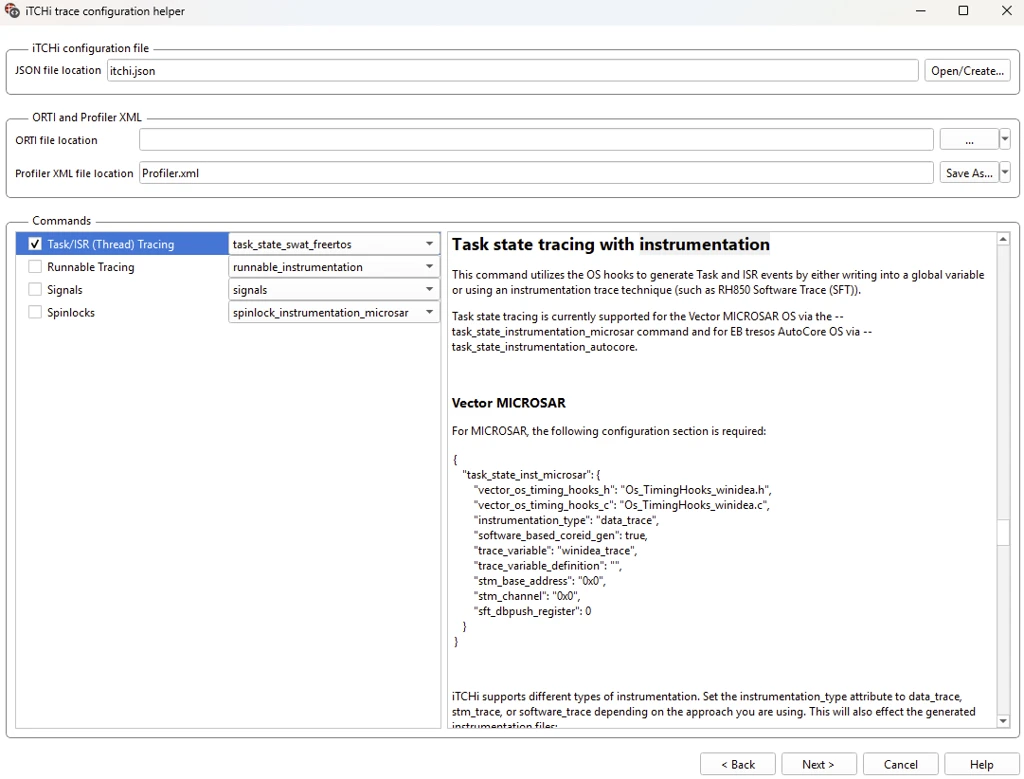
3. On the next page, configure the parameters:
a. as described in Configure SWAT parameters in iTCHi (bare metal example).
b. task_state_inst_freertos:
•instrumentation_type - This is automatically set to data_trace when using the instrumentation_freertos command, or to swat when using the swat_freertos command.
•impl_freertos_hooks_h - Header file into which iTCHi generates the FreeRTOS hooks implementation.
•task_tags_file - Path to the file containing task tag definitions. This file should also be used to set the task tags in the application.
•trace_variable - For data_trace, this specifies the name of the trace variable. For SWAT, this is unused.
•use_idle_task_check - If set to true, use the value in idle_task_tag field to signal the idle task instead of the one set by the application. It’s recommended to enable this unless you’re not interested in profiling the idle task.
•idle_task_tag - The tag to use for the idle task. Only used if use_idle_task_check is selected. This should match the value in the task tags header file.
•freertos_major_version - The major version of the FreeRTOS kernel. This must be specified if use_idle_task_check is selected.
4. Make sure that paths are matching with those in the workspace.
5. Generate.
The files listed at the beginning of this chapter are generated.
Step 2: Allocate the SWAT buffer
Follow these steps in the bare metal setup, however note that in case of an MPU, all contexts that generate software trace messages by calling the SWAT observer API must have access to the SWAT structure.
For FreeRTOS task profiling, this means that access from the kernel context must be possible.
Step 3: Integrate and rebuild the code
Follow these steps in the bare metal setup, and add the following files to your software build:
•OS-specific file - os/freertos/swat_observer_freertos.c
•iTCHi generated instrumentation file - default name: winIDEA_instrumentation.h
Step 4: Configure winIDEA Analyzer
Follow these steps in the bare metal setup, however in Debug | Configure Session... | Applications | Edit, select FreeRTOS as OS.
More resources